In the realm of angling, every cast, every tug, and every spot tells a unique story. Imagine you’re out on the water, surrounded by the peaceful serenity of nature, the gentle lapping of waves, and the anticipation of what lies beneath the surface. You feel that unmistakable pull on your line, your heart races, and there it is – a trophy bass.
What if you could create a trail of these fishing stories, a digital journal of angling adventures that guides you back to those thrilling moments whenever you want to reference them? These are not just coordinates on a map; they are your private pins marking the spots where your fishing memories are made.
Don’t have the FishAngler app? Download it for FREE now:


What Are Private Waypoints?
Imagine marking the very coordinates where you hooked that elusive trophy fish, or where the one that got away slipped the hook. Picture noting down the ideal sheltered nook where you found respite, or the shoreline where the fish dance close to the surface. And let’s not forget the convenience of knowing exactly where to park your vehicle for a seamless fishing day.
Waypoints are markers on a map, functioning as digital journal entries exclusively available to VIP subscribers. Waypoints enable anglers to review past fishing experiences, analyze successes and failures, and maintain a comprehensive record to enhance their angling performance in future outings. Best of all, Waypoints are private to you.
 Getting Started With Waypoints
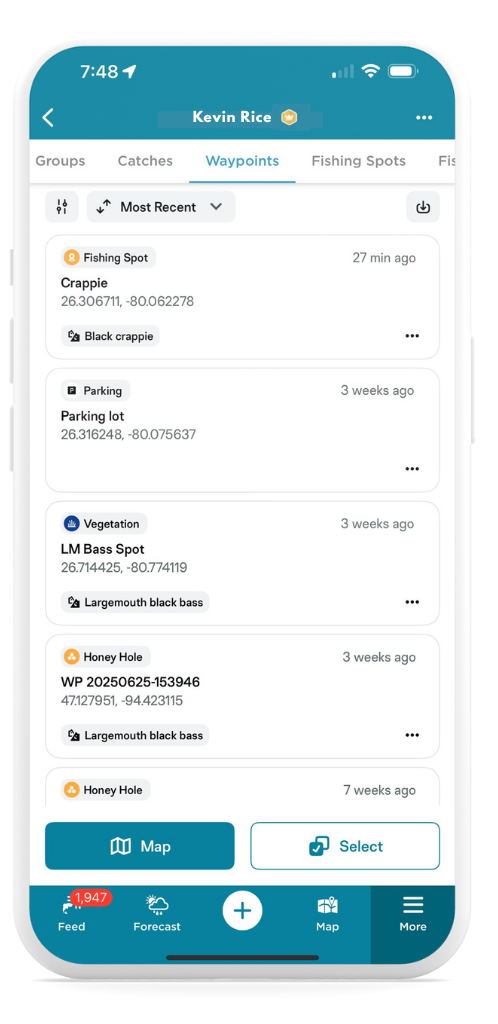
To access Waypoints, open your FishAngler app and tap the Map icon at the bottom of the screen. Navigate to where you would like to add a Waypoint to the map, and tap and hold that spot on your map screen. A progress circle will appear, and when it completes your Waypoint marker will drop onto the map. From here you will be prompted to populate details surrounding your Waypoint.
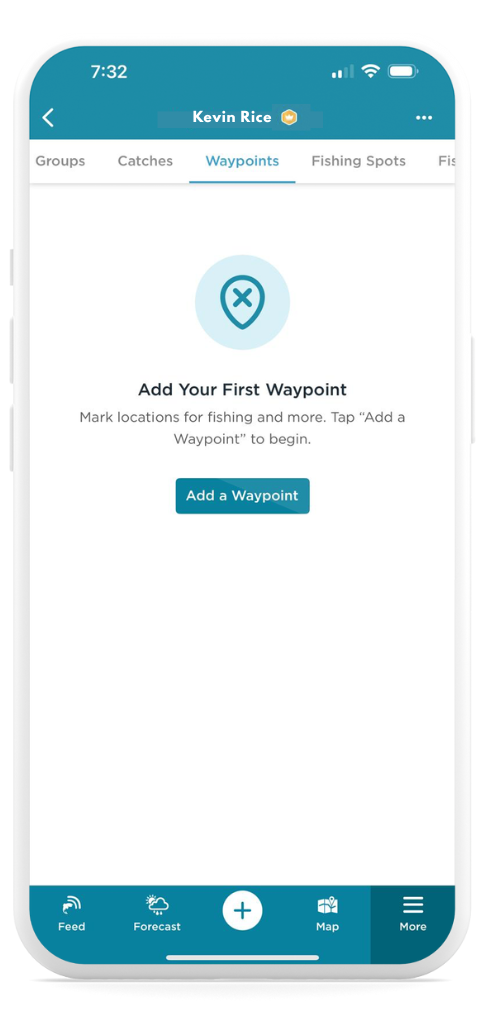
Another way to add a Waypoint is to tap on the “+” icon at the bottom of your FishAngler app screen and select “Add a Waypoint”. Select your Waypoint type, name your Waypoint, and add all additional information of value. Tap “Save” in the upper-right hand corner of your screen to add your new Waypoint.
Additionally, anglers can tap My Waypoints under the search icon in the upper-left hand corner of the Map screen. Select the first option “Add a Waypoint” and proceed with adding relevant information to a new Waypoint information.
Another option for adding a Waypoint can be found via the More menu at the bottom of the screen. Tap your profile name at the top of the screen and tap to drag the menu to display more results. Select Waypoints. Press the “Add a Waypoint” button to begin adding your Waypoint details.
 Types of Waypoints
Embrace the power of Waypoints through a few simple taps on the FishAngler map. Just a long press on the desired location and behold, a pin drops – a digital diary to your angling experience. Enhance your mark on the map with essential details, crafting a full narrative for each unique pin dropped. And the beauty of it all? These virtual markers are as flexible as a well-tied knot – edit, rearrange, or bid adieu if need be. Below is a comprehensive list of the types of Waypoints you can add to your personalized fishing map layer.
- Bite or strike
- Fishing spot
- Marker
- Bait fish
- Honey hole
- School of fish
- Diving spot
- Crab
- Fish
- And many more!
 Curious to relive those thrilling instances? Navigate to the FishAngler map and unveil your treasure trove of Waypoints. A mere click on the iconic pin symbol on the left side of the screen opens a gateway to your angling chronicles. And remember, Waypoints are always private by default, a record of memories for your eyes only.
 Sorting Waypoints
In the world of navigation and route planning, sorting and filtering Waypoints can be a game-changer. The ability to organize and prioritize your Waypoints can significantly enhance your efficiency and overall experience. Sorting allows you to arrange your Waypoints in a logical order, ensuring you follow a predefined sequence or reach your destinations in the most efficient manner.
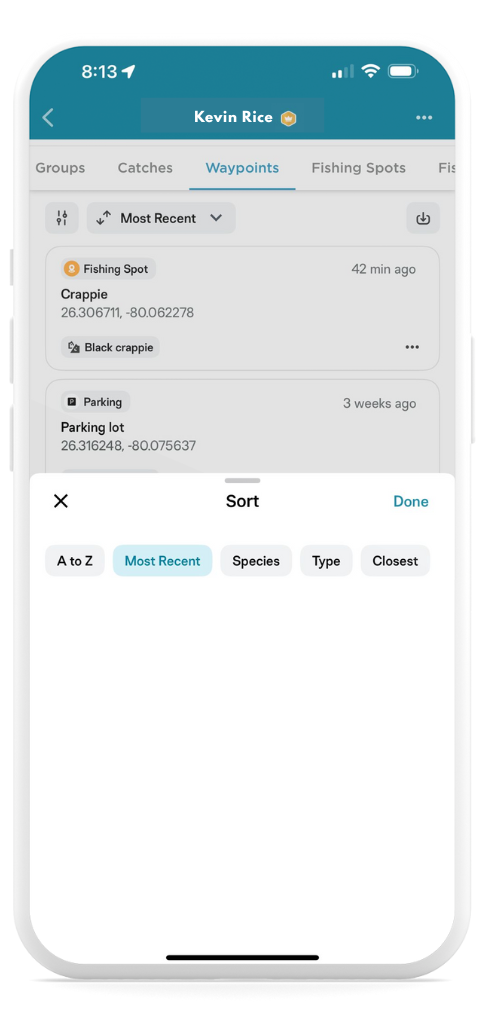
To sort your Waypoints, simply navigate to the list of your private Waypoints by tapping My Waypoints under the search icon in the upper-left hand corner of the Map screen. Tap the Sort icon at the top left-hand side of your Waypoints screen. From here, you can sort your Waypoints by date range, species, location or Waypoint marker type. Make your selection then tap the “Done” button in the upper-right hand corner of your screen to view your Waypoints sorted by your criteria.
 Filtering Waypoints
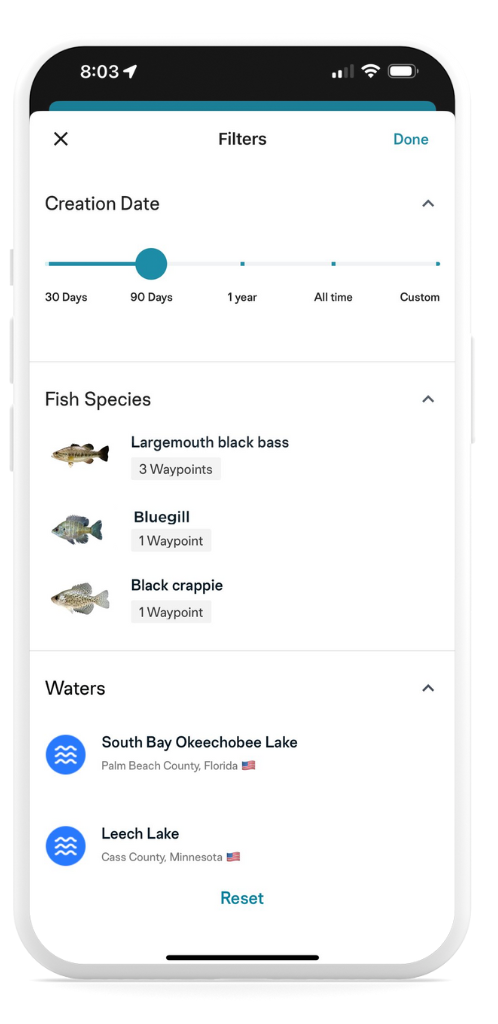
Filtering, on the other hand, lets you declutter your map by showing only the Waypoints that are relevant to your current journey or task, reducing distractions and making it easier to focus on what matters most. Mastering the art of sorting and filtering Waypoints is a valuable skill that can save you time and simplify your navigation process.
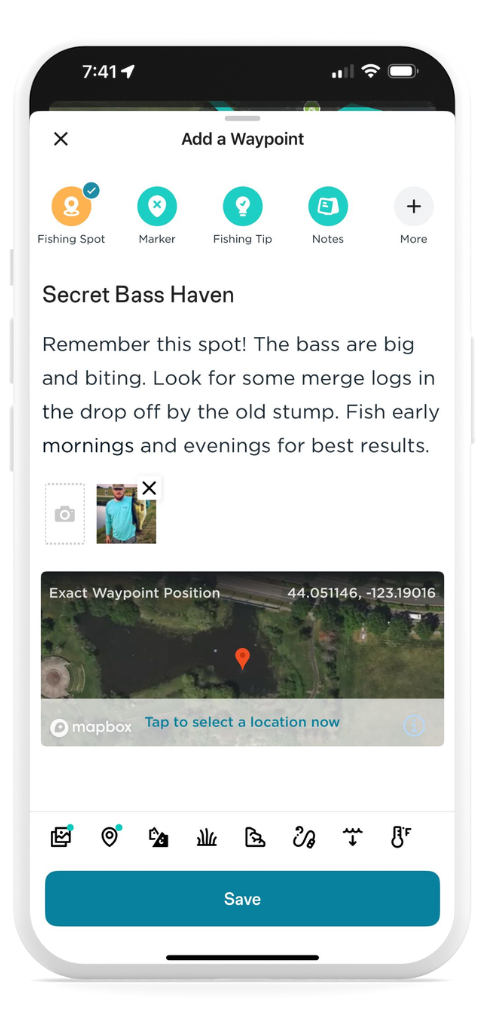
To sort your Waypoints, simply navigate to the list of your private Waypoints then tap the “Most Recent” button at the top of your screen. From here, you can sort your Waypoints by alphabetic order, date, species, type or location. Make your selection then tap the “Done” button in the upper-right hand corner of your screen to view your Waypoints sorted by your criteria.
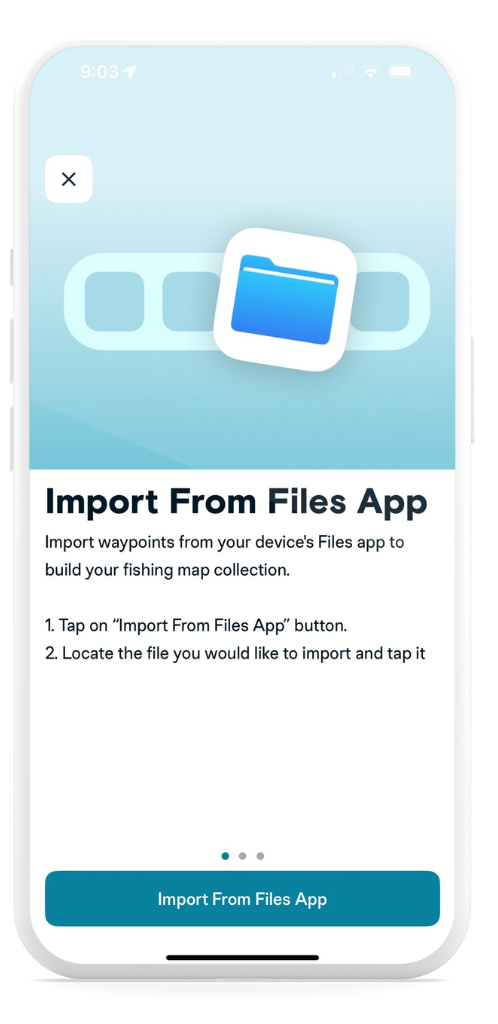
Have GPS data from another device or service? You can easily import your GPX Waypoints into the FishAngler app. Here’s how:
- Download the file containing your GPX data to your mobile device.
- Navigate to Waypoints under your FishAngler profile, and tap the import button in the upper right-hand corner of the Waypoints screen. Select an import option from Files app, other apps, or email.
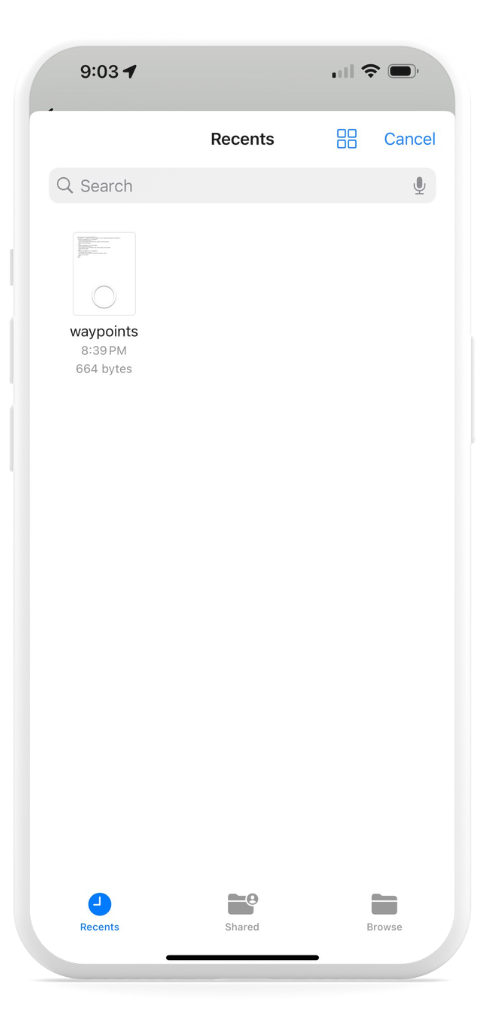
 Select and open the file containing your GPX data to download from your mobile device.
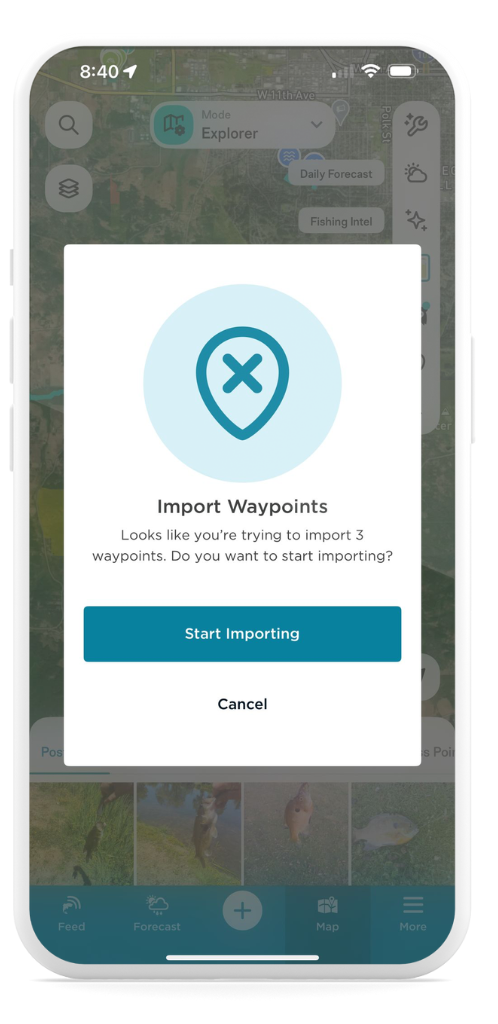
 Tap Start Importing when prompted.
- Review the list of available Waypoints.
- Tap Select to choose individual Waypoints or select all.
- Press the Import button to finalize.
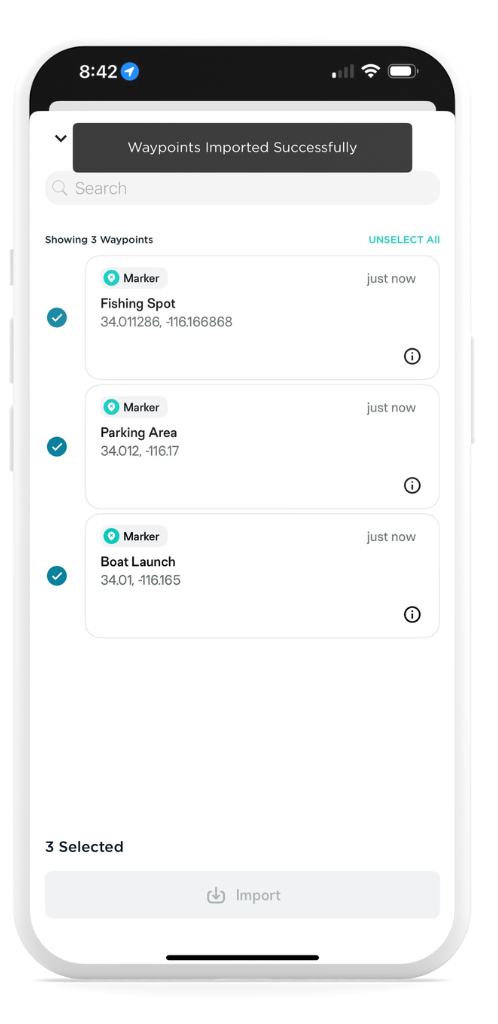
- After importing, tap each Waypoint to:
- Edit the marker type (e.g., change from “Fishing Spot” to “Crab” or “Honey Hole”).
- Update the name or coordinates if needed.
- Add notes, fishing conditions, photos, or lure information to enrich your records.
Now your favorite fishing spots from other devices are saved and ready in your FishAngler map!
Exporting Waypoints
Want to take your data with you or use it with a fish finder or mapping tool? Exporting Waypoints is simple:
- Open the FishAngler app.
- Select the More menu at the bottom of the screen.
- Tap your angler icon at the top of the menu.
- Toggle to the Waypoints tab in your profile navigation bar.
- Tap the Select button at the bottom of the screen.
- Choose the Waypoints you’d like to export.
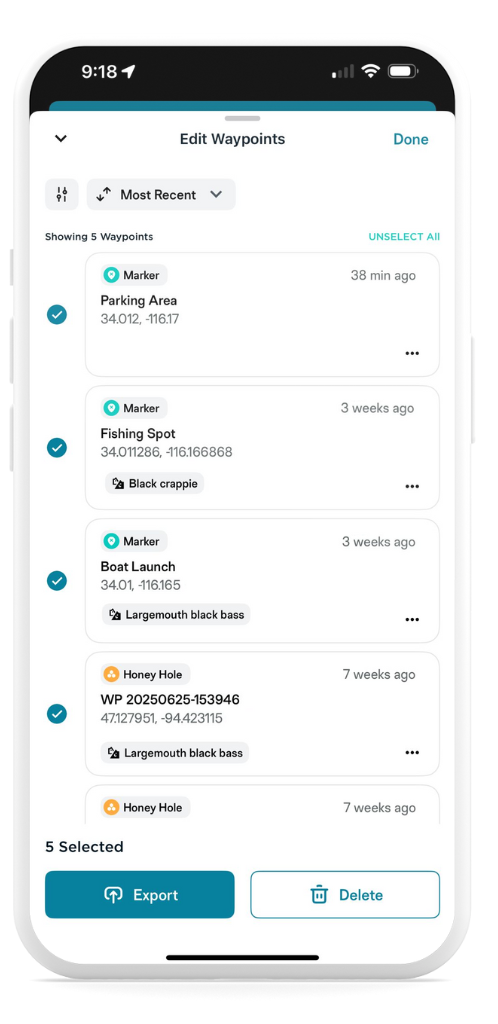 Select GPX format for your export file.
- Save the GPX file to your device or share it via email or another app.
- Import the GPX file into your fish finder using your device’s instructions.
Want help syncing your fish finder to FishAngler? Visit: Sync your Fish Finder with FishAngler.
FishAngler VIPs on the latest version of the app can drop as many pins as they’d like on the FishAngler map, creating a logbook of their fishing history. So, gear up and get ready to pave your fishing journey with Waypoints – the modern angler’s compass to past conquests and future victories, brought to you by FishAngler.
Don’t have the FishAngler app? Download it for FREE now: